Understanding Campus Voucher Approvals
Overview
Campus vouchers are approved electronically in ConnectCarolina using Workflow. Approvers are automatically notified when a voucher needs their approval. The system displays vouchers requiring approval in their Worklist and if their user profile is set up to allow it, sends them an email notification.
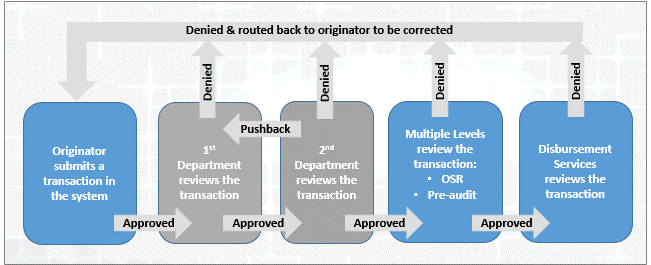
Depending on the chartfields and dollar amounts entered, campus vouchers route through up to four levels of approvers. They are:
- Department approvers - Two or more people in the department review campus voucher requests and approve or deny them. If more than three departments are sharing the cost of the transaction, the system makes the three departments with the most money on the voucher the approvers, and all other departments become reviewers. Department approvers do the following:
- assess whether the expense is one the department agrees to pay for
- verify that it isn't a duplicate
- check if supporting documentation such as a vendor's invoice is attached
- verify the expense doesn't violate UNC procurement rules, such as reimbursing an employee for out-of-pocket expenses that should go through the WebTravel system instead
- The Office of Sponsored Research (OSR
 Office of Sponsored Research) - OSR reviews vouchers for certain items and services purchased under research grants to ensure the transaction can be processed against the grant and meets all federal regulations. Vouchers that route to OSR are as follows:
 - All vouchers for independent contractors paid for under a research grant route to OSR approval, regardless of dollar amount.
- Items and services purchased under a grant route depending on the dollar amount and account number. Vouchers with certain account numbers always route to OSR. But for other account numbers, the voucher must contain $5,000 or more before it routes to OSR.
- Pre-Audit - Pre-Audit checks to ensure the correct chartfields are used on the voucher and that the expense doesn't violate state regulations, such as restrictions against using state funds to pay for meals, alcohol, flowers, recruiting expenses and parking tickets. If incorrect chartfields are used, Pre-Audit denies the voucher and asks the originator to correct the chartfields.
- Accounts Payable - Accounts Payable approvers review the scanned image of the invoice and check to make sure the invoice number on it matches the invoice number on the voucher. They also verify the vendor's remit to address and total dollar amount matches.
Approving or Denying
After reviewing a voucher, an approver can take one of the these actions by clicking one of the buttons at the bottom of the voucher:
- Approve the transaction
- Deny the transaction and enter a reason.
- Add comments to the voucher.
- Put the voucher in a Hold status while awaiting more information.
- If a higher-level department approver, push back the approval to an earlier department approver
When you approve a voucher, the system sends an email to the next approver in the queue, if there is one. When you deny a voucher, the system sends an email to the originator, who can edit the voucher and resubmit it into approval workflow.
Adding Reviewers and Approvers
If you need someone else to review the voucher, you can add a reviewer to the voucher. A reviewer can review the voucher details and add comments, but cannot approve or deny the voucher.
You can also add more approvers. Adding an approver to a voucher only affects that voucher. It doesn't permanently alter the workflow for campus vouchers.
Related Reference
- For instructions on approving campus vouchers as a Department, OSR or Pre-Audit approver, see Approving Campus Vouchers.
- For instructions on approving campus vouchers as a Accounts Payable approver, see Approving Campus Vouchers at the Accounts Payable Level.
- For an overview of all financial approval transactions in ConnectCarolina, see the Approving Finance Transactions quick reference. The approval workflow outlined on the reference is different from that for campus vouchers, however. The campus voucher workflow is shown in the graphic in the next section.
Campus Voucher Workflow Process