Using the Chartfield Checker Tool
Overview
All ConnectCarolina financial transactions require a chartfield string. If the transaction has an incorrect combination of chartfield values, or if there is insufficient budget on the chartfield string, the transaction will be delayed or result in inaccurate information. The Chartfield Checker is a tool that lets you verify that your chartfield string is valid and has budget before you enter a transaction in ConnectCarolina.
Let's look at a couple of examples. You may have a transaction that needs to be processed quickly and cannot be delayed by potential errors. Use the Chartfield Checker tool to validate the chartfield string prior to entering the transaction in ConnectCarolina.
Or, your department imports journals into ConnectCarolina from a flat file, and you'd like to know whether certain chartfield strings are valid and have sufficient budget prior to uploading the file. You can use the Chartfield Checker tool to check the transactions before they are uploaded into ConnectCarolina. When you take this step ahead of time, you avoid the possibility of needing to make corrections after transactions are uploaded into the system.
Notes:
- Using this tool is optional. The system will validate your chartfield strings and make sure there is adequate budget, no matter if you use the Chartfield Checker.
- The tool indicates whether a chartfield string currently has budget available. It does not encumber or reserve funds.
- The Chartfield Checker validates and budget checks one chartfield string at a time.
- If your department processes a high volume of transactions and needs to check many transactions, the Chartfield Checker may not be right for you. An automated alternative is available; have your IT person contact the Help Desk for details. You'll need to prepare a file with information in a specific format, and the Help Desk will provide the necessary URL and WSDL to send the file electronically.
Related Reference
- For broader context, see Understanding Combo Edit Errors.
- For information on budget errors, see Reviewing Budget Errors.
Menu Path
Point your browser to https://ccinfo.unc.edu/chartfield-checker
Steps - Using the Chartfield Checker Tool
Follow these steps:
- Point your browser to https://ccinfo.unc.edu/chartfield-checker.
Chartfield String Validation and Budget Check
- Complete the fields.
| In this field: | Do the following: |
|---|---|
|
Business Unit |
Enter uncch for the University, uncga for General Administration, or a foundation business unit. |
|
Fund Code |
Enter the fund used on the transaction. |
|
Source |
Enter the source used on the transaction. |
|
GL Account |
Enter the account used on the transaction. |
|
Department |
Enter the department used on the transaction. |
|
PC BUnit |
If the transaction is for a contract or grant, choose one of the following:
|
|
Project |
If the transaction is for a contract or grant, enter the project ID. Otherwise, leave this field blank. |
|
Activity |
If the transaction is for a contract or grant, enter 1. Otherwise, leave this field blank. |
|
Program |
If the transaction uses it, enter the program code, which accommodates your department or school’s reporting needs. |
| Cost Code 1 | If the transaction uses it, enter cost code 1, which accommodates your department or school’s reporting needs. |
| Cost Code 2 | If the transaction uses it, enter cost code 2, which accommodates your department or school’s reporting needs. |
| Cost Code 3 | If the transaction uses it, enter cost code 3, which accommodates your department or school’s reporting needs. |
| Budget Date |
If you want to see if there will be available budget on a future date, enter that date in the field. Otherwise, leave the field blank to use today's date. Note: A budget date is useful for grants when the transaction will be entered on a future date. The transaction will fail budget checking if the project end date occurs before the date entered in this field. |
| Amount |
Enter the amount of the transaction. Note: The field is limited to 10 characters including commas and decimals. You are not required to enter commas and decimals. |
- Click the Submit button.
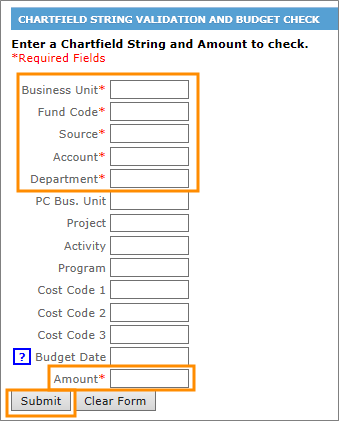
Result: The tool identifies if the chartfield string is valid and has available budget.
Note: The tool takes from eight to 20 seconds to run. Depending on your browser, you may not see an hour glass or spinning icon; however, the browser tab displays the word “Connecting” when the tool is running.
- To check another chartfield string, click the Clear Form button.
- Enter the next set of chartfield values and the amount you want to validate.
Chartfield Checker Error Messages
If the chartfield string is invalid or does not have available budget, the tool displays an error message in red text at the top of the page. The table below lists some common error messages.
After resolving any errors, enter the correct values in the appropriate fields and click the Submit button to verify the chartfield string and amount are valid.
| Type of Error |
Message |
Possible reason for the error |
|---|---|---|
| Chartfield |
Invalid combination |
For example, account 558921 is not allowed on state or F&A funds |
| Chartfield | Invalid value in DEPTID: XXXXX |
|
| Chartfield | A valid Chartfield String is required |
|
| Budget | Budget date out of bounds |
|
| Budget | No budget exists |
|
| Budget | Exceeds budget tolerance |
|